
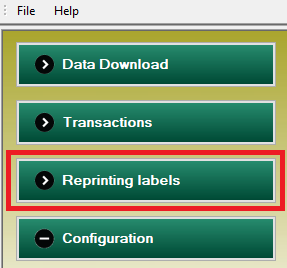
If you need to print certain labels again, but the transaction should not be counted again, you need to use the Reprinting labels option. This option enables you to repeat the printing of the desired labels, without deducting those kilograms a second time.
Descripcion de la imagen
Captura del menu principal del software Gesvatec mostrando los botones: Data Download, Transactions, Reprinting labels (resaltado con recuadro rojo), Configuration. Botones en verde oscuro con iconos de flecha.
When to reprint labels
The reprinting labels feature must be used in very specific cases:
- When the text on the labels is not aligned correctly.
- When the print quality of the text on the labels is poor, making it hard to read.
- When the printer did not print the labels due to technical problems, but the transaction was registered correctly.
- When the printer prints blank labels.
- When the labels become torn or damaged.
- When the destination of the labels has changed.
Warning: labels may be reprinted ONLY in such cases.
Instructions
- Go to the Reprinting labels screen.
- Click the transaction that contains the labels you want to reprint. If needed, you can filter transactions by date, designation, etc.

Descripcion de la imagen
Captura de la tabla 'Reprinting labels' del software Gesvatec. Columnas: Request Date, Confirmation Date, Designation, Packaging, Labels, Kilos, Destination, State. 3 filas visibles (fondo verde claro): Fila 1: 28/12/2016 11:30:53, confirmada, AIGUAFREDA (Nadorcott) - ID:..., Box 1 Kg., 1, 1,00, Confirmed. Fila 2: 27/12/2016 18:01:45, confirmada, AIGUAFREDA (Nadorcott) - ID:..., Box 7,5, 45, 337,50, Confirmed. Fila 3: 27/12/2016 17:11:00, confirmada, AIGUAFREDA (Nadorcott) - ID:..., Box10 Kg., 120, 1200,00, Confirmed.
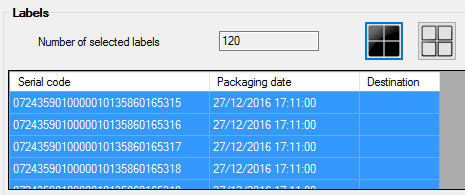
- Select the labels you want to reprint.
Descripcion de la imagen
Captura de la seccion 'Labels'. Campo 'Number of selected labels: 120'. Tabla con columnas Serial code, Packaging date, Destination. Filas visibles: 07243590100001013586016531 5 - 27/12/2016 17:11:00. 07243590100001013586016531 6 - 27/12/2016 17:11:00. 07243590100001013586016531 7 - 27/12/2016 17:11:00. 07243590100001013586016531 8 - 27/12/2016 17:11:00. Iconos en la esquina superior derecha para vista de cuadricula.
- To select all the labels, click

Descripcion de la imagen
Checkbox marcado con texto 'Set destination' y desplegable con valor 'European Union'.
- To deselect all the labels, click

Descripcion de la imagen
Icono pequeno de una impresora en gris. Boton para imprimir.
- To select several labels, you can do it in two different ways:
- Click the labels one by one.
- Select the first label by clicking it, then press the 'up' or 'down' arrow keys to quickly select the rest of the labels.
- If needed, you can change the destination of the transaction by clicking the Set destination checkbox and selecting a new country or region in the drop-down list:

Descripcion de la imagen
Icono de cuadricula 2x2 con cuadros negros. Vista de cuadricula compacta de etiquetas.
- Click the
 button to start reprinting the labels.
Descripcion de la imagen
Icono de cuadricula 2x2 con cuadros grises/blancos. Vista de cuadricula expandida de etiquetas.