
Here are the steps you need to take to print labels (that is, make a transaction).
Requirements
In addition to having installed and activated the software, to make a transaction you need to:
- Have configured a printer in the labeling software.
- Have created, at least, one packaging for the variety of which you want to print labels.
Instructions
- Run Gesvatec and log in to the software.
- Go to the Transactions screen.
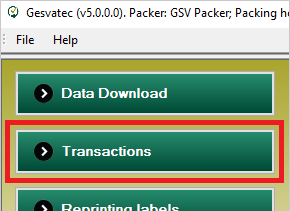
Descripcion de la imagen
Captura del software Gesvatec (v5.0.0.0) mostrando el menu principal con botones: Data Download, Transactions (resaltado con recuadro rojo), Reprinting labels (parcialmente visible).
- Click the "new transaction"
 button.
Descripcion de la imagen
Icono pequeno de un documento con check verde (formulario completado/nuevo consumo).
- In the Denomination drop-down list, select the denomination or brand of which you want to print labels.
- In the Designation drop-down list, select the desired farm or plot.
Tip: To perform a print test, or if it's the first time you use the software, select the Example Plot designation. This will print test labels.
- Select the Packaging.
- In the Labels box, enter the number of labels you wish to print.
- Optional: If you want the country of destination code on the labels, check the Set destination checkbox and choose a country or region from the drop-down list.
- Click the print
 button. A confirmation message will show up, asking if you want to print the labels. After clicking
Descripcion de la imagen
Icono pequeno de una impresora (para imprimir etiquetas).
 to accept the message, the printer will start printing the labels.
Descripcion de la imagen
Icono pequeno de un check verde sobre fondo azul claro (confirmacion/validacion).